

 By
By It has been over two years since I started using Gcash to pay my BIR quarterly percentage income tax. In fact, I successfully paid my 1st quarter using Gcash. However, I was taken aback when I attempted to pay for the 2nd quarter and couldn’t find the BIR option on the Gcash billing list. That’s when I discovered that BIR temporarily disabled their payment acceptance through the GCash app. I understand the inconvenience of going through the process of queuing up and making the payment at a bank. Thankfully, I recently learned that Maya is now accepting BIR payments as well. I apologize for only discovering this today.
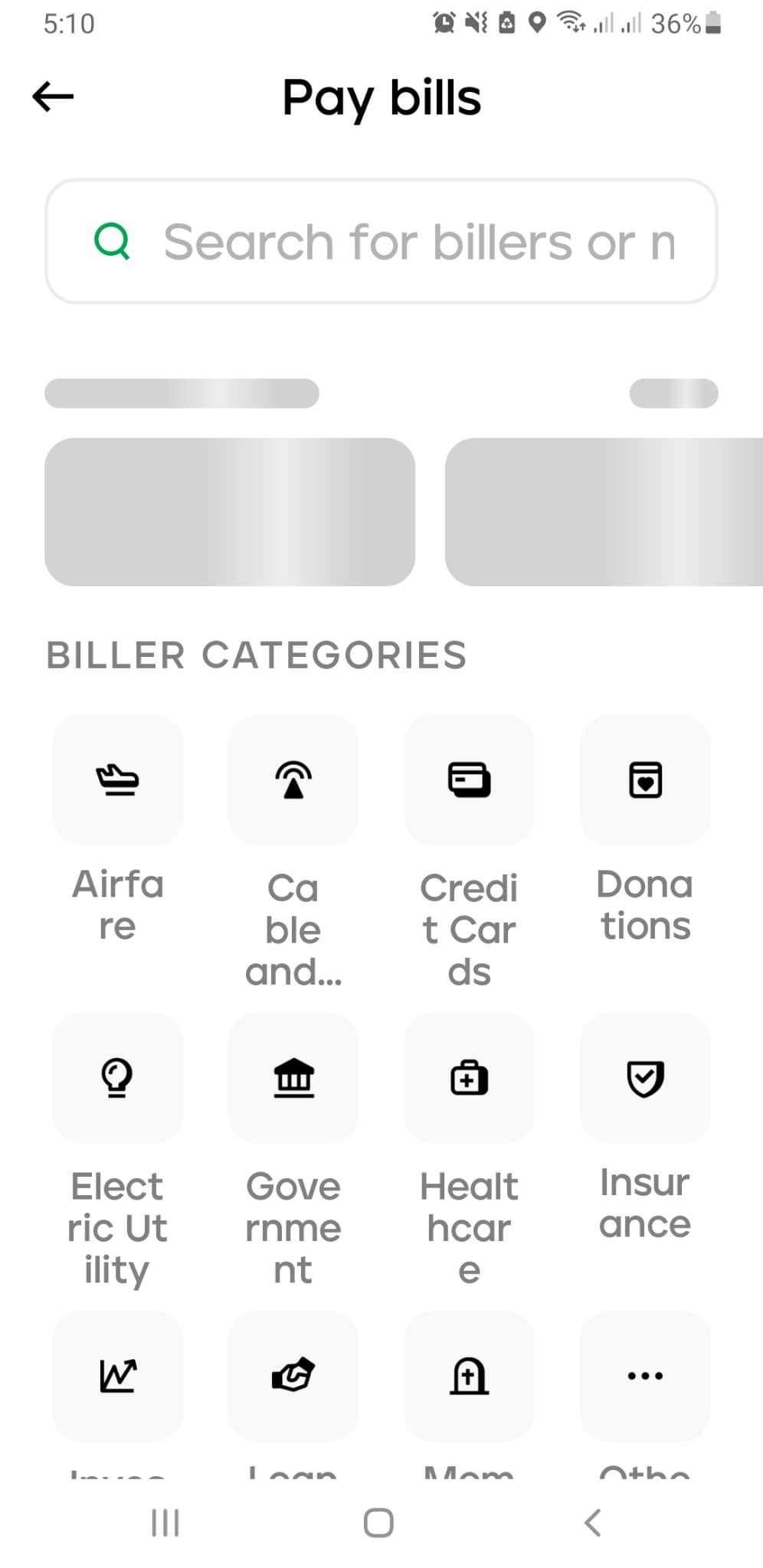


Paying BIR taxes via Maya is just as easy as paying other bills through the Maya platform. Here’s how:
- Log in to your Maya app. (Make sure you have enough balance)
- Tap on “Pay Bills.”
- Go to “Government,” and you’ll find BIR listed first since it’s in alphabetical order. Alternatively, you can simply search for BIR in the search box.
- Click on BIR. A reminder will pop up after selecting BIR, as shown in the photo. (Read and understand BIR payment reminders)
- Click “Got it.”
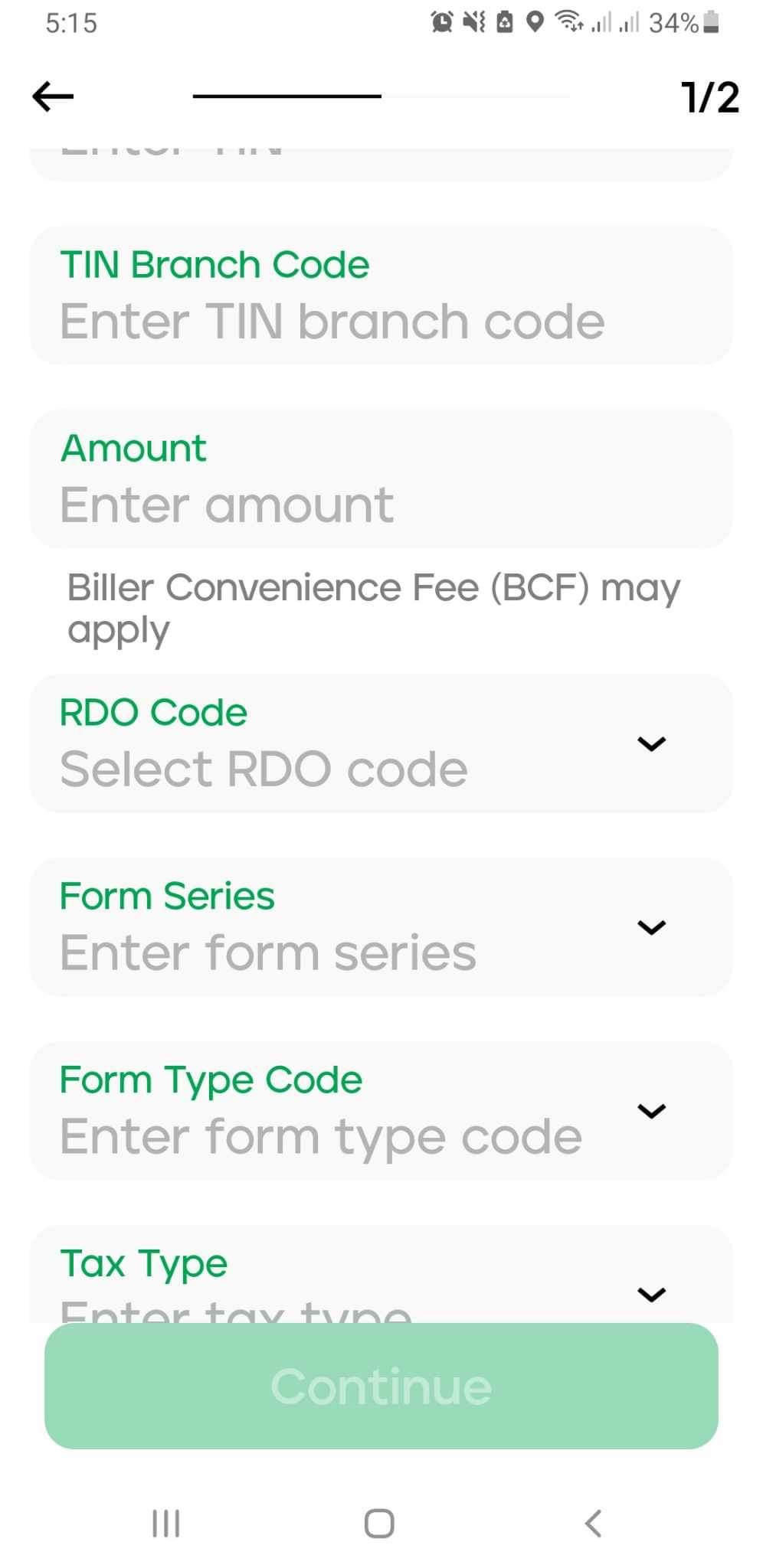
- Enter your nine-digit TIN Number and your branch code as “500000” (five zeroes).
- Input the amount of tax to be paid.
- Enter your RDO code.
- Select the Form Series, Form Type Code, and tax type.
- Specify the return period.
- Don’t forget to provide your email address as proof of payment. You can also take a screenshot or photo of the payment for reference.
- Continue and proceed with the payment.
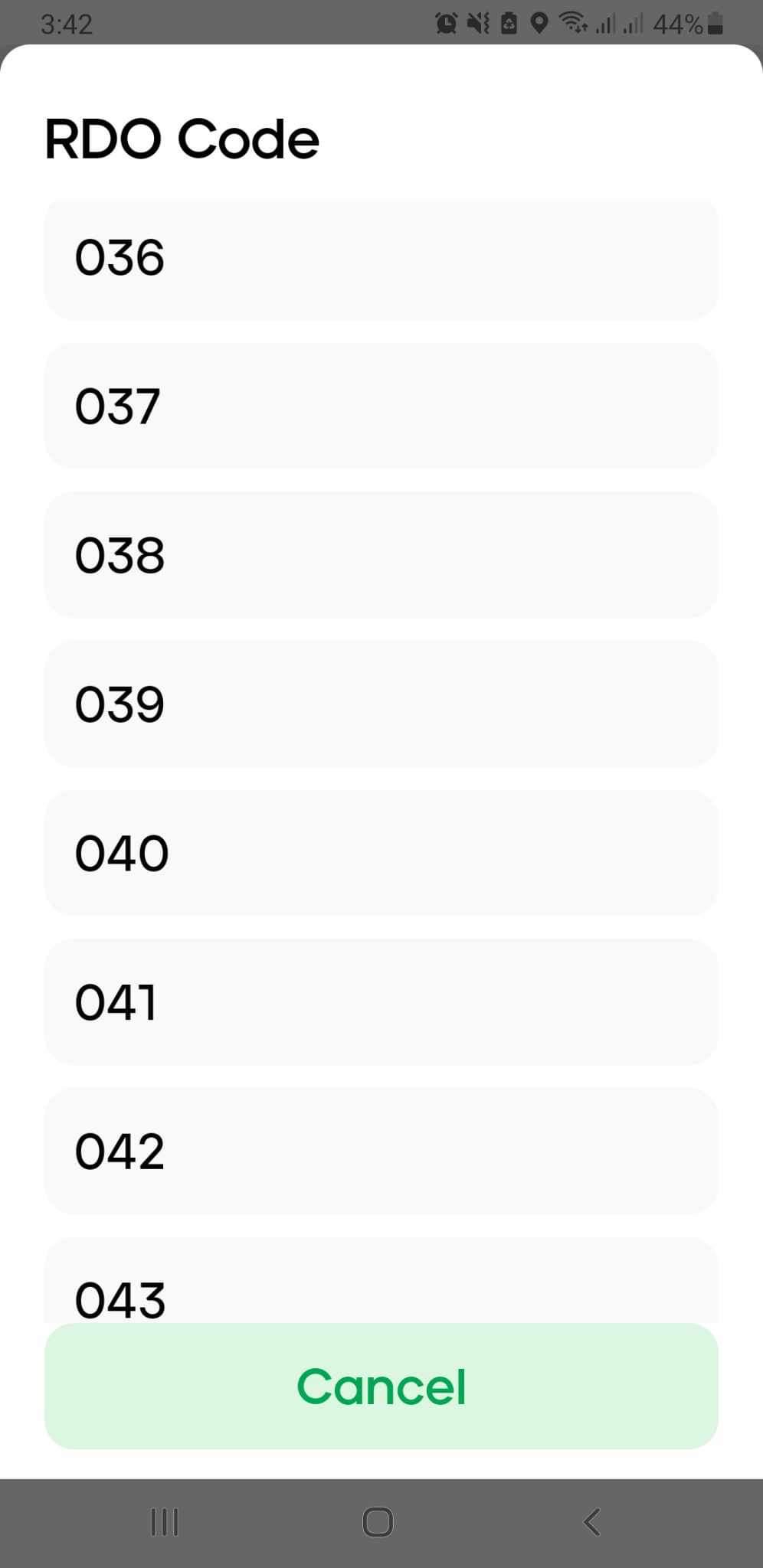

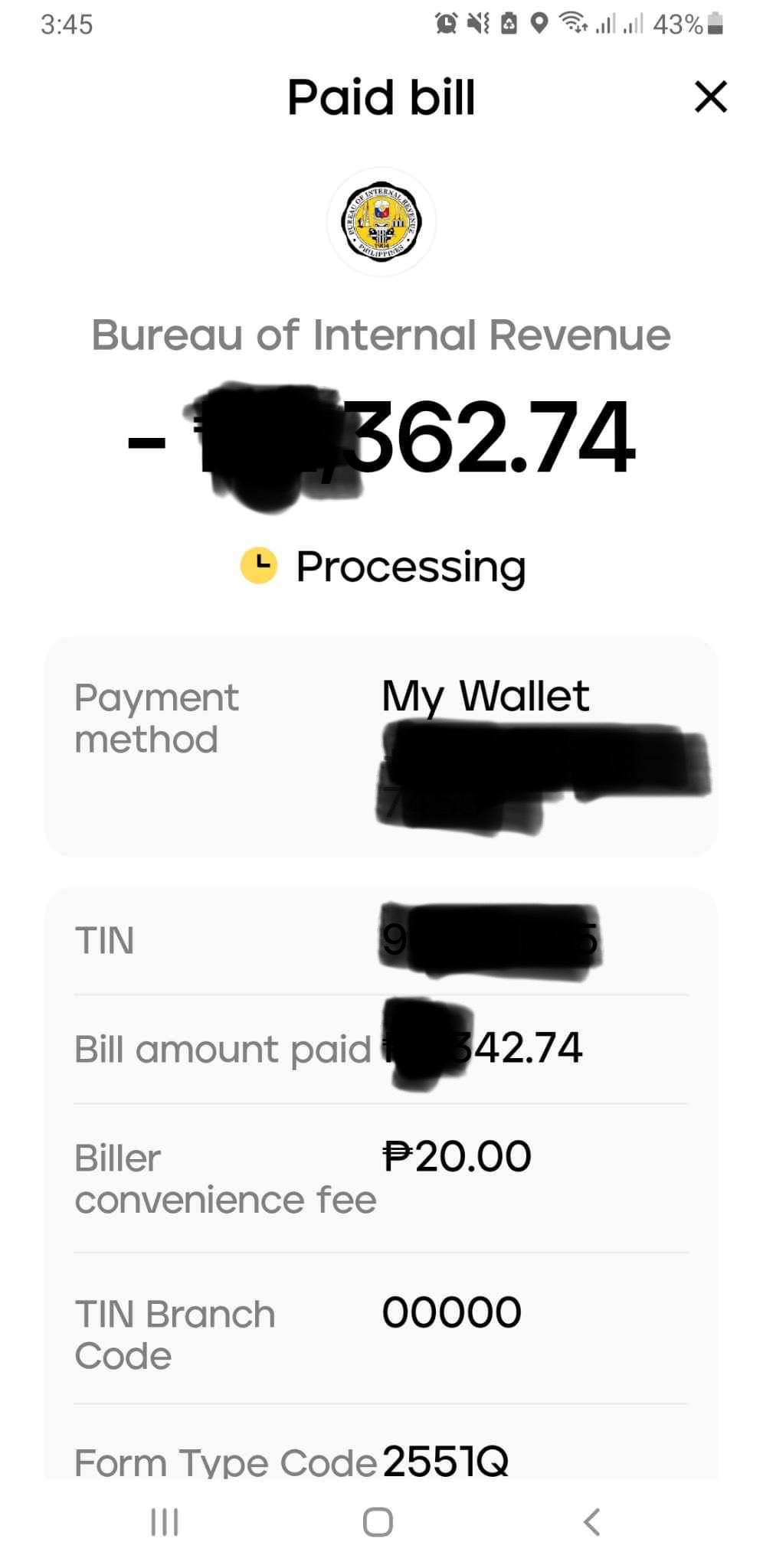
Check your email from Maya for the transaction date and receipt. I usually print it out along with a photo of the app showing the transaction. Then, I staple it together with my BIR form.